

Why Your Telstra, Optus or ISP Email Has Stopped Working in Outlook — And How to Fix It
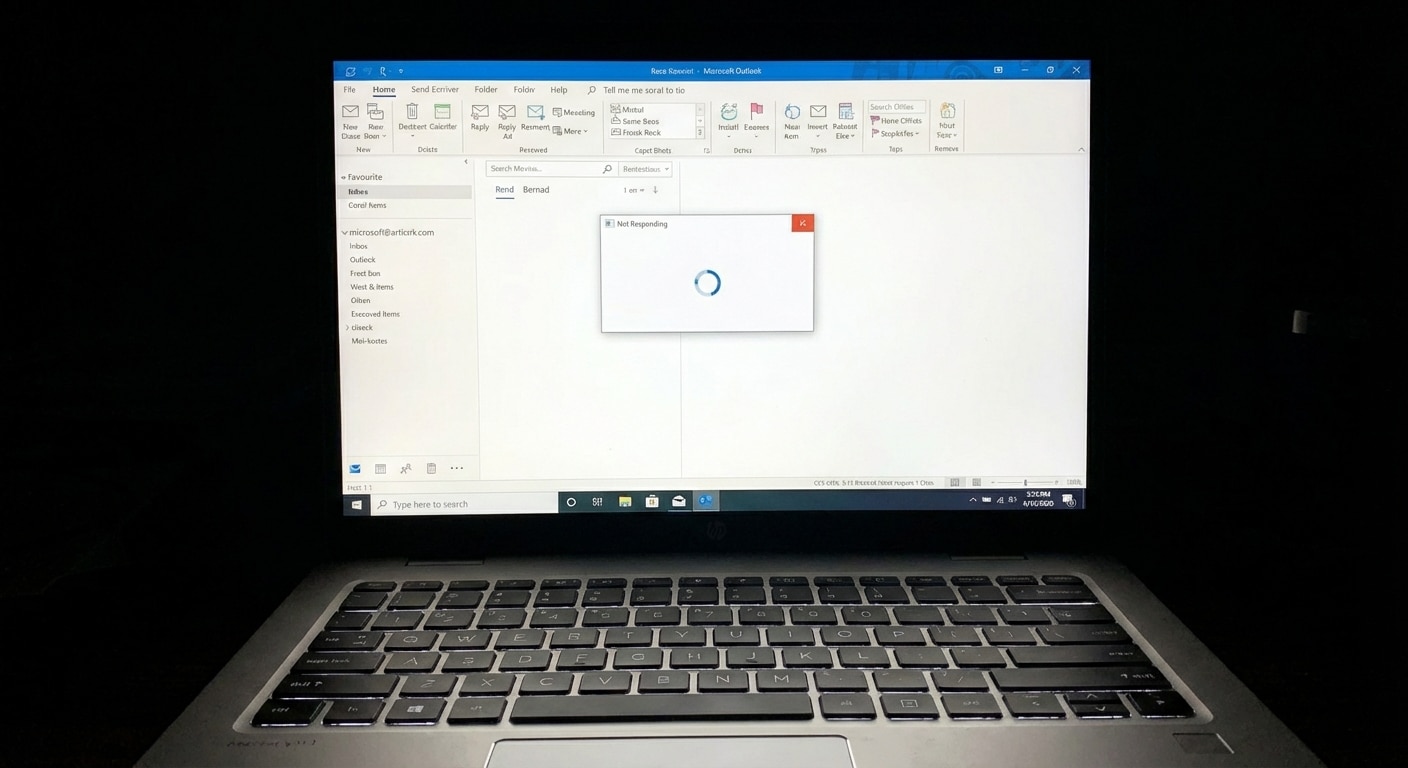
Over the past few weeks, we’ve had a steady stream of calls and emails coming through from Brisbane locals all describing the same frustrating problem: their Outlook email has simply stopped working. Messages aren’t sending, emails aren’t coming through, or Outlook is crashing and freezing without any obvious reason.
If you’re experiencing this right now, you’re definitely not alone — and the good news is there’s a clear fix once you understand what’s actually going on behind the scenes.
What’s Actually Happening?
The issue comes down to a silent conflict between two things that are both running on your computer at the same time: Microsoft OneDrive and your Outlook PST file.
If you use a POP email account — which is extremely common with Australian ISP email providers like Telstra BigPond, Optus, TPG, Internode and similar services — Outlook stores all of your emails locally in a file called a PST file. By default, this file is saved inside your Documents folder.
Here’s where the trouble starts. On most modern Windows PCs, Microsoft has OneDrive backup turned on for your Documents folder by default. This means OneDrive is continuously trying to sync everything inside Documents — including your PST file — up to the cloud.
The problem is that your PST file is being actively read and written to by Outlook in real time, every single time you send, receive, or open an email. OneDrive and Outlook end up competing for access to the same file at the same time, and neither one wins cleanly.
The result is a range of symptoms that can be really frustrating to deal with:
- Outlook freezing or crashing without warning
- Emails failing to send or not arriving
- Error messages like “The set of folders could not be displayed” or “Your personal folder file is not valid”
- Outlook taking a long time to open or responding sluggishly
Because OneDrive runs quietly in the background, most people have no idea it’s the source of the problem — which is why this issue tends to catch people off guard.
Who Is Most Likely Affected?
This problem is most likely hitting you if you tick any of these boxes:
- You use a POP email account through an Australian ISP, such as Telstra BigPond, Optus, TPG, Internode or a similar provider.
- Your Outlook PST file is currently saved in your Documents folder, which is the default location for most standard setups.
- You have OneDrive backup switched on for Documents, which is enabled by default on Windows 10 and Windows 11.
It’s worth noting that if you’re using an IMAP or Microsoft 365 (Exchange) email account, you’re generally less likely to run into this specific issue. Those account types rely on cloud syncing for your emails rather than depending on a local PST file in the same way that POP accounts do.
How to Fix It
The solution involves two straightforward steps: relocating your PST file to a folder that OneDrive isn’t syncing, and then updating Outlook so it knows where to find it.
Before you begin, close Outlook completely. If Outlook is still running while you try to move the file, it will lock the PST file and the move won’t work.
Find Your PST File
Open Outlook, then go to File → Account Settings → Account Settings. From there, click on the Data Files tab. You’ll see the current path to your PST file listed here — it will most likely show something along the lines of:
C:\Users\YourName\Documents\Outlook.pst
Take note of the file name before you close Outlook.
Move the PST File Out of Documents
Open File Explorer and navigate to your Documents folder. Locate your PST file — it’s usually called Outlook.pst, though it may be named after your email address. Right-click the file and select Cut. Then navigate to your Downloads folder, right-click inside it, and select Paste.
Why Downloads? It’s a local folder that isn’t typically included in OneDrive backup. If you’d prefer to use a different folder, just make sure it’s not one that OneDrive is syncing.
Get Outlook Pointing to the New Location
Once the file has been moved, you have two options to reconnect Outlook to your emails.
Option A — Update the location within your existing profile
Open Outlook and go to File → Account Settings → Account Settings again. Click the Data Files tab, select your PST file, and click Change Folder. Browse to the Downloads folder (or wherever you moved the file), select your PST file, click OK, and then restart Outlook.
Option B — Recreate your Outlook profile from scratch Recommended
This is the more reliable option if Option A doesn’t fully resolve things. Close Outlook, open the Control Panel, and navigate to Mail (you can also search for “Mail” in the Windows Start menu).
Click Show Profiles, select your existing profile, and click Remove.
Don’t worry — removing the profile doesn’t delete your emails. It only removes the account settings.
Click Add to create a brand new profile, set up your email account again, and when you’re asked about the data file location, point it to your PST file in the Downloads folder. Set the new profile as your default, open Outlook, and you should be back up and running.
Still Not Sure Where to Start?
We completely understand if this feels like a lot to navigate on your own — especially if you’re not confident clicking through Outlook’s settings or aren’t certain which steps apply to your particular setup. There’s no shame in getting a hand with it.
Our team at Geeks Brisbane provides hands-on email setup and troubleshooting for residents and businesses right across Brisbane and the surrounding areas. Whether you need us to move your data files, fix your existing Outlook profile, or set things up fresh from scratch, we can come to you and get it sorted properly.
- Phone: 1300 600 004
- Mobile: 0488 843 543
- Email: info@geeksbrisbane.com.au
- Address: Level 4, 260 Queen Street, Brisbane City QLD 4000
- We Offer Email Support & Troubleshooting
Geeks Brisbane — local IT support, right on your doorstep.